G-Time Tracker – Support
Informations about the G-Time Tracker Google AddOn:
G-Time Tracker – Support
Welcome to the G-Time Tracker support page. Find answers to common questions below, or get in touch directly.
Getting Started
🚀 Installation
- Open Google Workspace Marketplace
- Search for „G-Time Tracker“
- Click Install and grant the requested permissions
- Open Google Calendar – the add-on panel appears on the right side
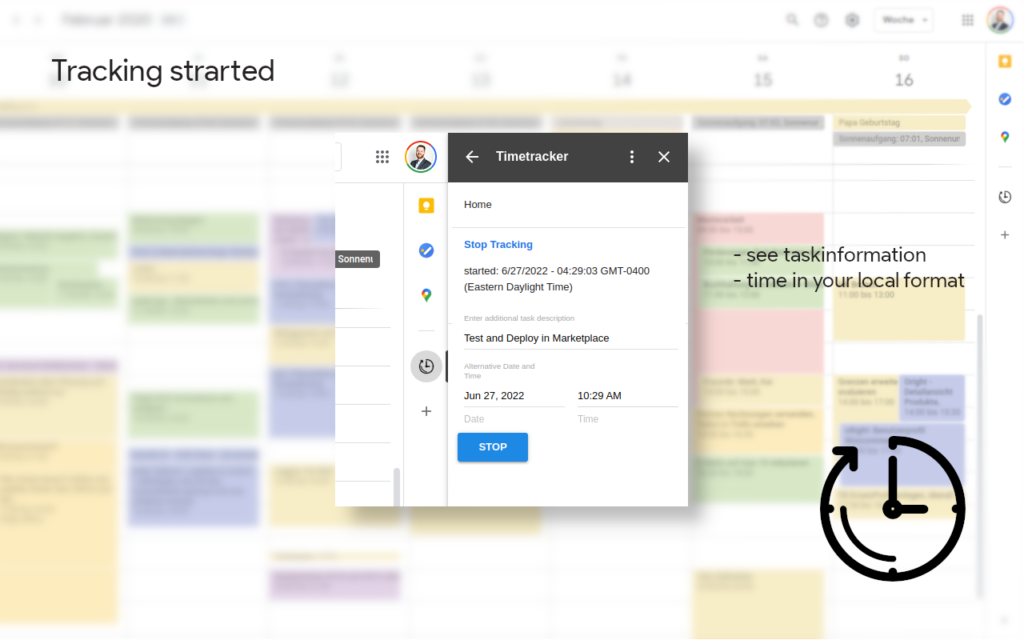
⏱ How to Track Time
- Open Google Calendar in your browser
- Click the G-Time Tracker icon in the right sidebar
- Select a project (optional) and enter a task description
- Click Start to begin tracking
- Click Stop when you’re done – an event is saved to your calendar
Frequently Asked Questions
The add-on panel is not visible in Google Calendar
Try the following steps:
- Refresh the Google Calendar page (Ctrl+R or Cmd+R)
- Make sure you are using Google Calendar in a web browser (not the mobile app)
- Check that the add-on is installed: Go to your Google Account permissions and verify G-Time Tracker is listed
- Try a different browser or disable browser extensions temporarily
My time entries are not being saved to the calendar
This is usually a permissions issue. Please:
- Uninstall the add-on from your Google Account
- Reinstall it from the Marketplace
- Make sure to grant all requested permissions during installation, including calendar access
How do I manage my projects?
You can add, edit, and delete projects directly within the add-on panel in Google Calendar. Open the add-on sidebar and navigate to the Projects section to manage your project list.
Can I edit the start or end time after tracking?
Yes! G-Time Tracker allows you to set an alternative date and time when starting or stopping a task. You can also edit the resulting calendar event directly in Google Calendar like any other event.
I get an „Authorization required“ error
Click the „Authorize“ or „Continue“ button when prompted. If the error persists:
- Go to myaccount.google.com/permissions
- Find G-Time Tracker and click Remove Access
- Reinstall the add-on from the Marketplace
How do I uninstall G-Time Tracker?
To uninstall the add-on:
- Go to myaccount.google.com/permissions
- Find G-Time Tracker and click Remove Access
- Or uninstall via the Google Workspace Marketplace: search for the add-on and click Uninstall
Note: Uninstalling will remove the add-on and all stored settings. Your calendar events created by the add-on will remain in Google Calendar.
Which browsers are supported?
G-Time Tracker works in all browsers that support Google Calendar, including Google Chrome, Mozilla Firefox, Microsoft Edge, and Safari. For the best experience, we recommend Google Chrome.
Useful Links
- Our Terms
- Privacy Policy & Terms of Service
- Manage Google Account Permissions
- Google Workspace Marketplace
Contact Support
📬 Get in Touch
If your issue is not covered above, please contact us via the contact form on our website. Include as much detail as possible:
- A description of the problem
- Steps to reproduce the issue
- Your browser and operating system
- Any error messages you see